
Change texts, badges and colors
An offer's own texts are in the offer: Content for the title, the tier for its title and badge. The look of every offer is on the Design page. Other languages: Translate in More actions.
Last checked in the app on November 24, 2026.
In the offer
The heading and benefits
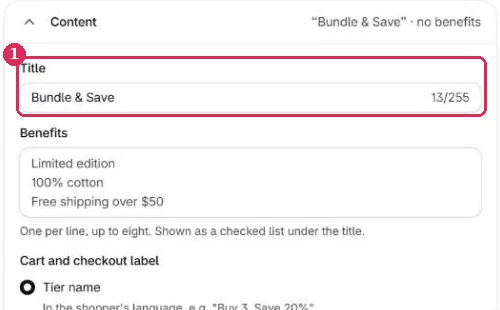
Open the offer and expand Content. Title (1) is the line above the tiers, "Bundle & Save" at first. Benefits adds a checked list, one per line.
A tier's title and badge
Open a tier: its Title and Subtitle are there. The badge menu next to the tier offers No badge, Most popular, Best value or Custom text….
On the Design page (every offer)
Colors and badge style
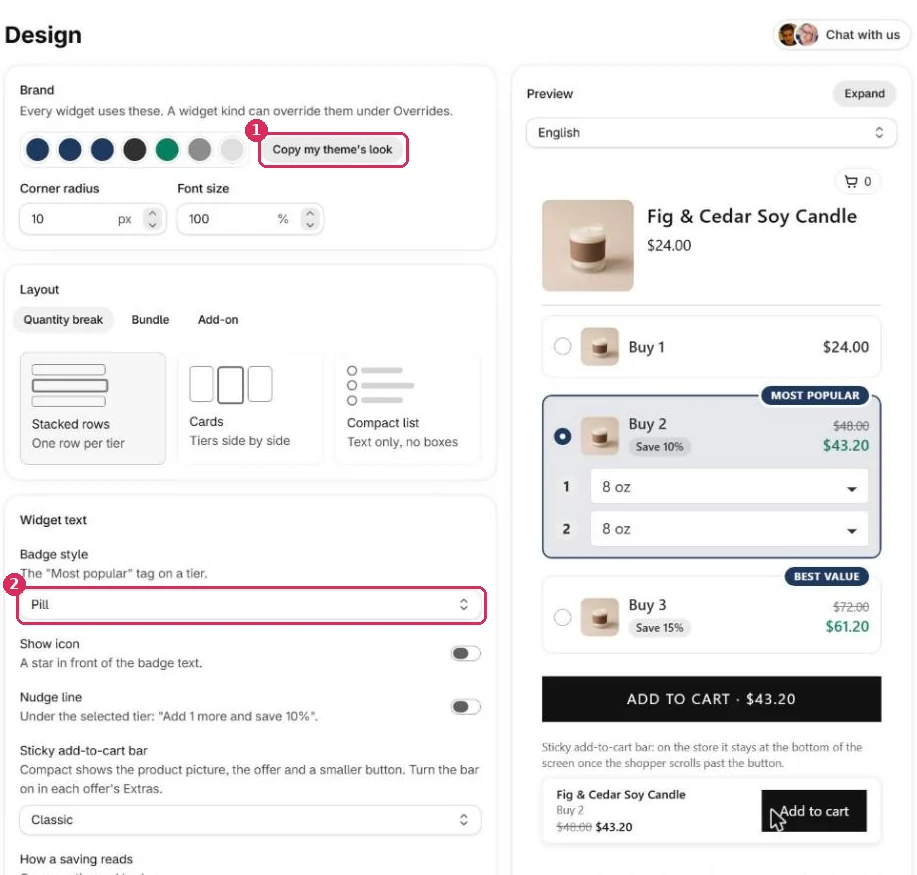
Open Design in the app menu. Copy my theme's look (1) takes your theme's colors and corners; press Save to keep them. Badge style (2) and How a saving reads are under Widget text.
Hide or move "Save 10%"
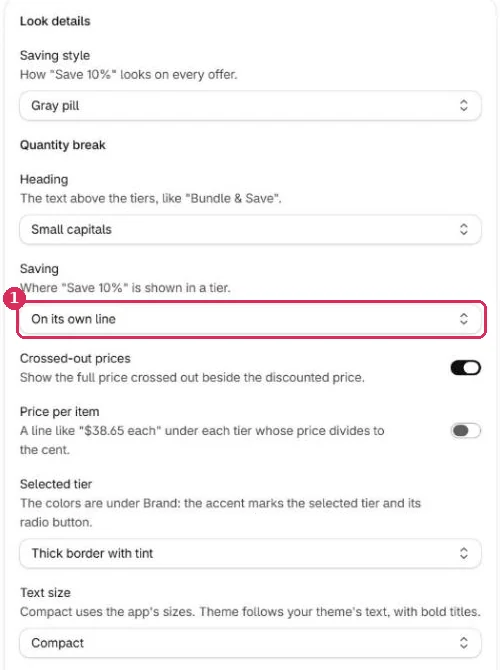
Further down, under Look details and Quantity break, Saving (1) sets where "Save 10%" shows: On its own line, In the tier title or Hidden. Click Save.
Other languages and words
- One offer's texts in another language: in the offer, More actions, Translate. Translate automatically fills empty fields for you to check.
- Words every offer shares, such as the add to cart text: the Translations page, Edit translation next to the language.
- A variant's option name, such as Color, comes from the product in Shopify. Rename the option there.
Read next
- Help centerAll help pages
- Theme setupCopy your theme's look
- Quantity breakTiers and badges