
Help · mix and match
Set up a mix and match offer
Mix and match lets shoppers pick any products from your list and get the tier discount on the total, for example any 3 candles save 15%. It is a quantity break with Customer picks any of these (mix & match) turned on.
Last checked in the app on November 24, 2026.
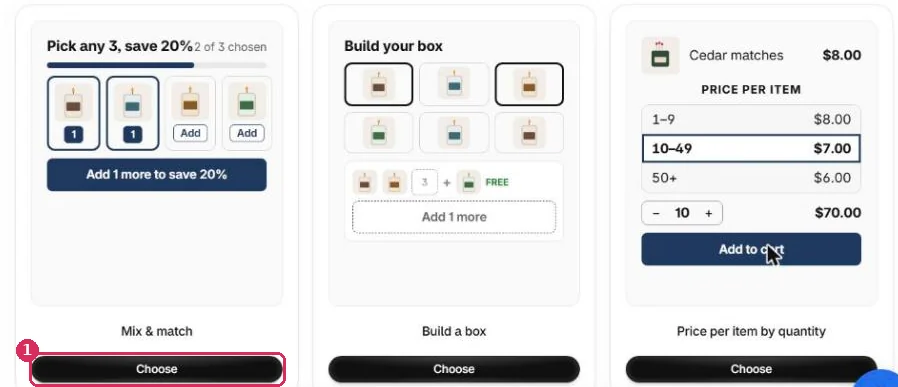
Choose Mix & match
In Happy Bundle, click Create offer, then Choose under Mix & match.
Add the products and check the mix and match box
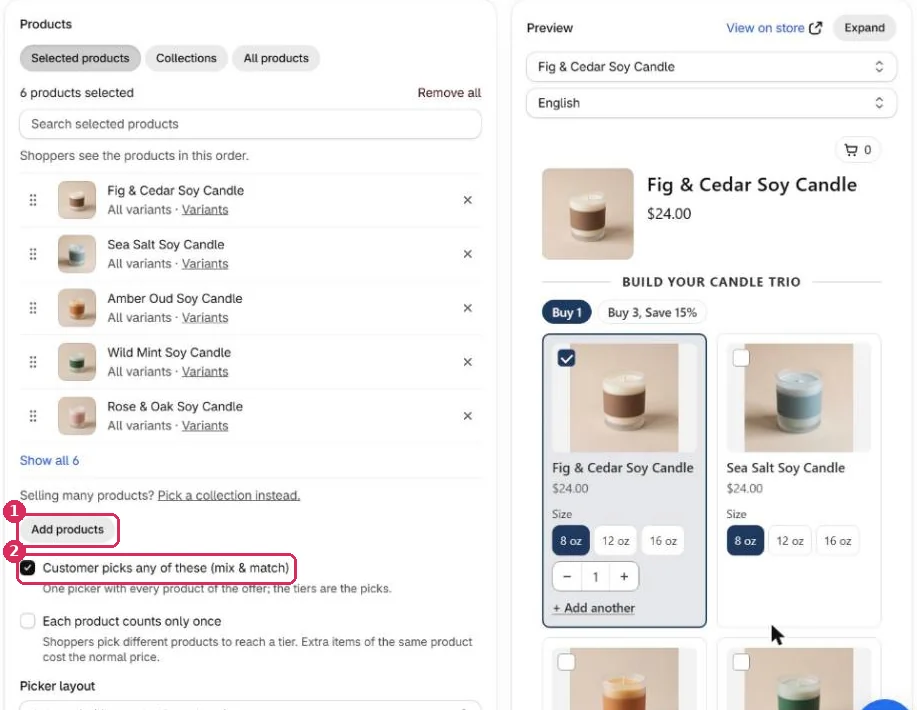
Click Add products (1) and pick every product shoppers can mix, or choose Collections for a whole collection. Make sure Customer picks any of these (mix & match) (2) is ticked. Each product gets its own size and color choice in the picker.
Set the tiers and publish
Set the tiers as for any quantity break, for example 3 items save 15%. Click Publish. The picker shows on the page of every product in the offer.
Options merchants ask about
- Each product counts only once: shoppers must pick different products to reach a tier; extra units of the same product pay the normal price.
- Picker layout: Tiles: tap a product to pick it or List: rows with − / + buttons. Start collapsed folds it into one line.
- Also show on its own page (Build your box) gives the offer its own page where shoppers fill a box. More: build a box.
- A product in a mix and match offer shows that picker instead of its own quantity break, so give each product one offer.
Read next
- Help centerAll help pages
- Mix and match ideasWhat stores sell this way
- Sizes and colors per itemHow the per-item pickers work