
Create a quantity break
A quantity break gives a better price for more units of the same product, for example Buy 2 save 10%, Buy 3 save 20%. In Happy Bundle: Create offer, Quantity break, pick the product, set the tiers, Publish.
Last checked in the app on November 24, 2026.
Choose Quantity break
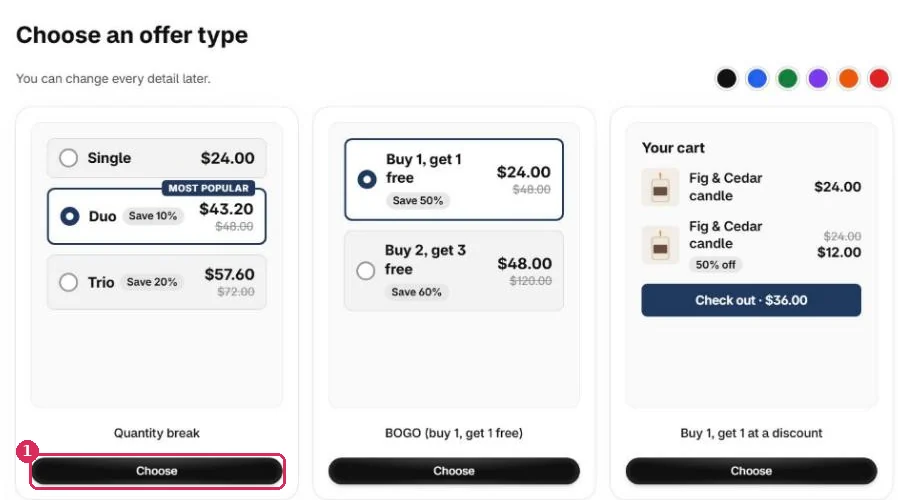
In Happy Bundle, open Offers and click Create offer. On Choose an offer type, click Choose under Quantity break.
Pick the product, then set each tier
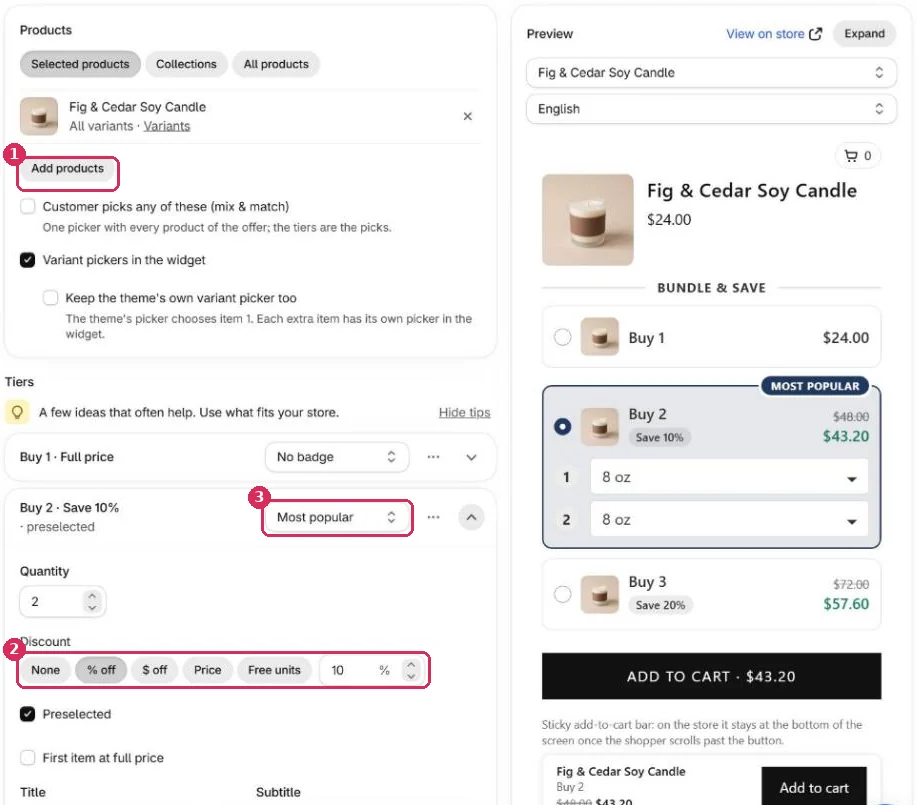
Click Add products (1) and pick the product. Open a tier with its arrow. Set Quantity and the Discount (2): % off, a money amount off, Price for the whole tier ("3 for $20"), or Free units. The badge menu (3) adds Most popular, Best value or Custom text…. The preview on the right shows your own product.
Add or remove tiers, then publish
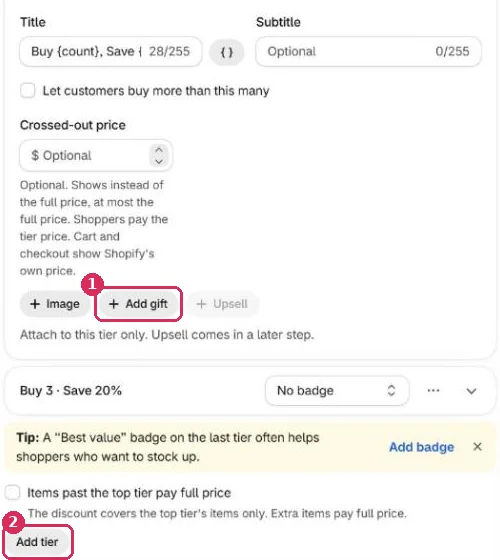
Inside an open tier, Add gift (1) adds a free product to that tier. Add tier (2) adds a row; a tier's Tier actions menu (the three dots) removes one. Click Publish at the top. The offer shows above the add to cart button on that product.
Good to know
- One quantity break shows per product. If two live offers cover the same product, the Offers page warns you, and shoppers see only one.
- "3 for $20" that repeats for 6, 9 and more: use Price on the tier and tick Repeat packs under the tiers.
- The same deal on several products, counted together: add them all, or a collection, and see mix and match.
- More on free products with a tier: see BOGO and free gifts.
Read next
- Help centerAll help pages
- Texts and designBadges, titles, the Save line, colors
- Offer not showing?What to check