
Help · add-ons
Offer an add-on on product pages
An add-on is an extra product shown under the add to cart button, like gift wrap or a wick trimmer, at a discount if you like. Shoppers add the extra together with the product.
Last checked in the app on November 24, 2026.
Choose Add-on
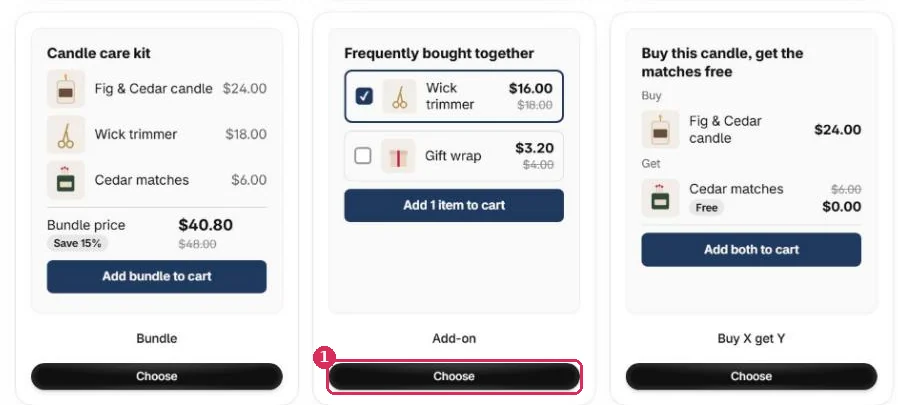
Click Create offer, then Choose under Add-on (1). The product picker opens: pick the add-on product itself.
Check the add-on, where it shows, and its discount
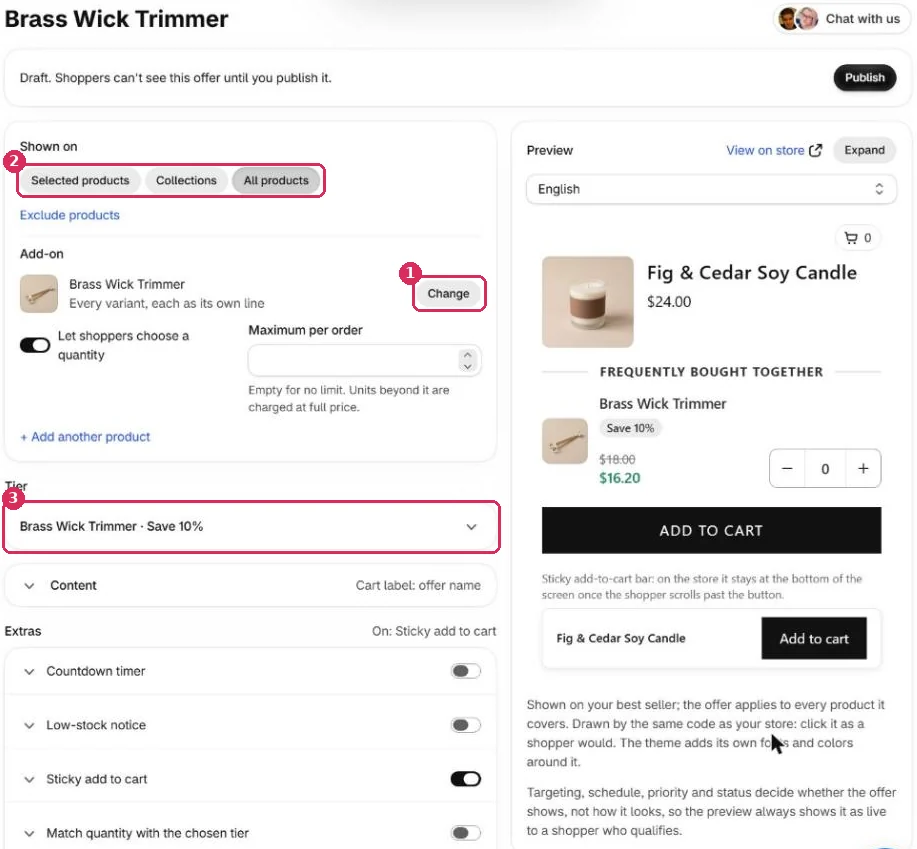
Change (1) swaps the add-on product; + Add another product adds more. Under Shown on (2) choose Selected products, Collections or All products. Open the tier (3) to set the discount, 10% off at first. Then Publish.
Good to know
- Let shoppers choose a quantity shows plus and minus buttons; turned off, A checkbox adds one.
- Layout: under Look, Add-on layout offers Blocks with image and price, One compact row each or Picture row with Add all to cart.
- A paid extra such as gift wrap works the same way: create it as a product in Shopify first, then pick it as the add-on.
Read next
- Help centerAll help pages
- Add-on ideasWhat to offer
- Frequently bought togetherPicked from your orders